02. Connecting your Mikrotik router
By Timo Kavuma - Oct 11, 2025
The Case: We all know the reason you want to connect to your router is to be able to do remote management and supervision. We do that in 3 Simple steps.
STEP 1: Set up the Wireguard Keys that will enable you to access your router from anywhere on earth.
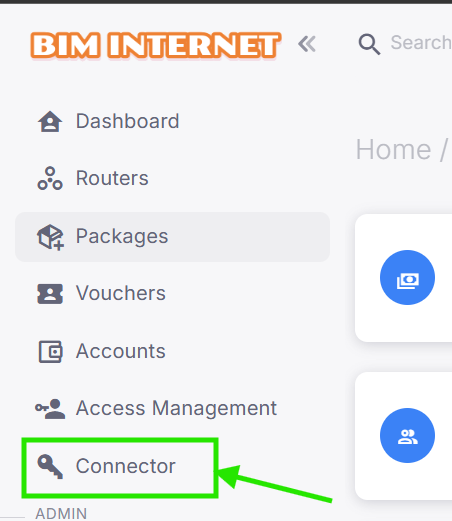
1.0 Select the connector link in yopur menu.
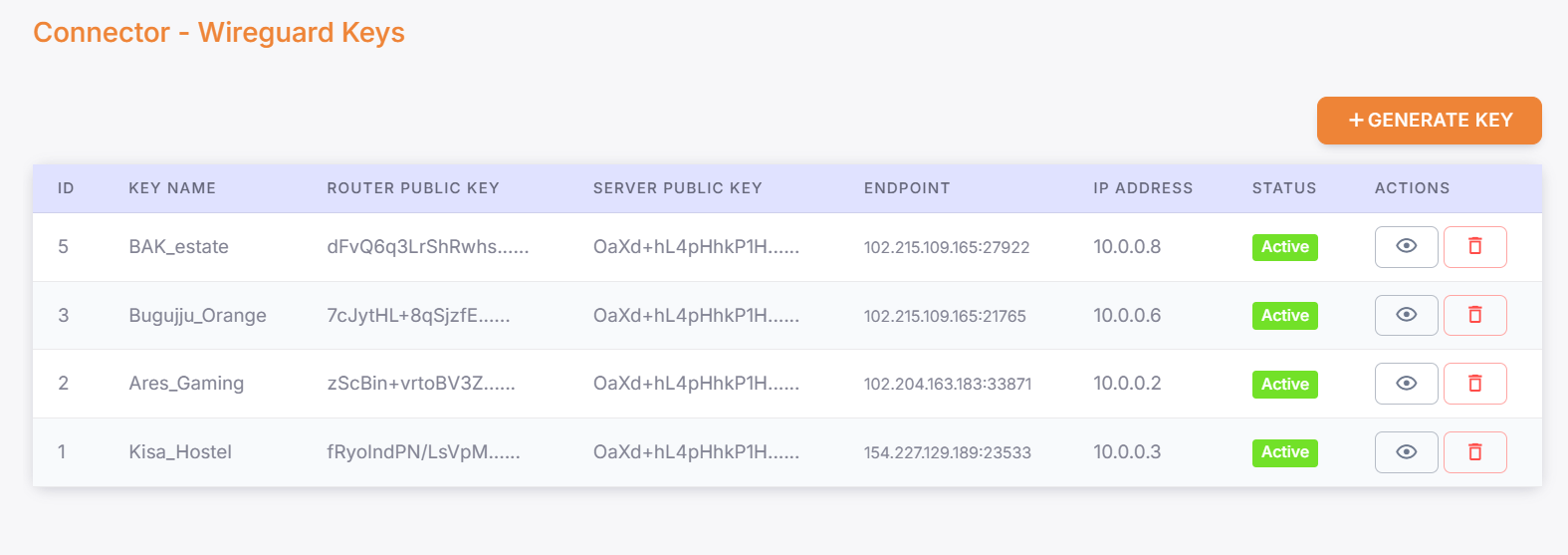
1.1 You will be taken to the key listing and addition page.
1.2 Once the Generate key button is pressed, you will get a dialog asking for your key details ie.Key Name, Endpoint Address and Port
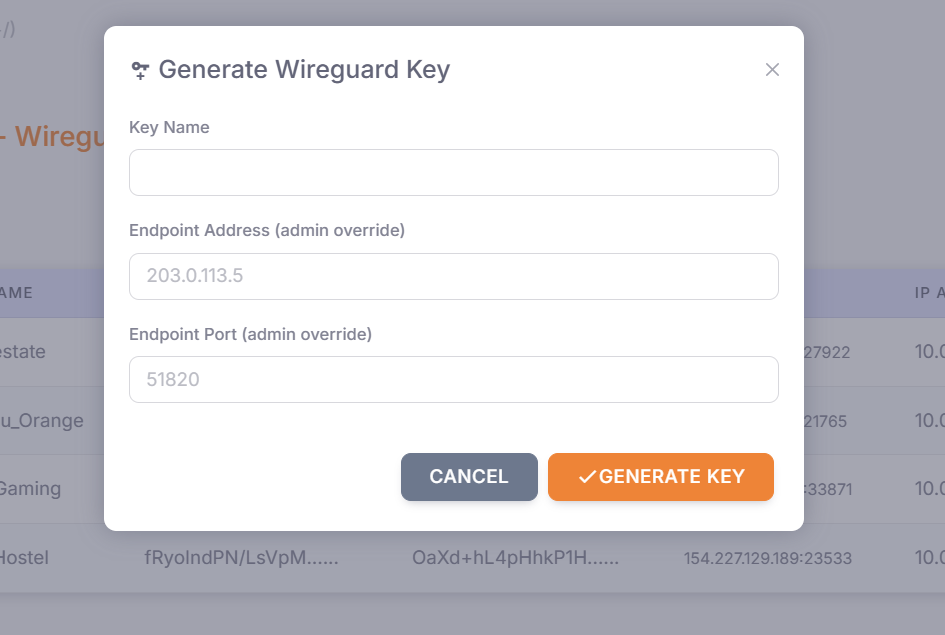
Type any name of your choice and press the generate button to get result like below. (In mine, I've called mine timo_connector)
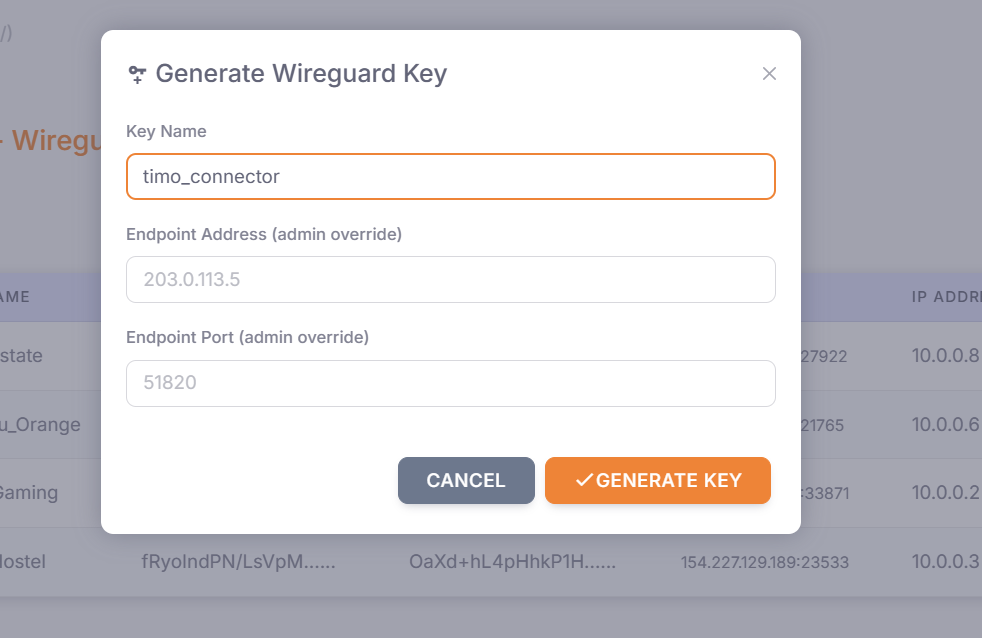
When you check the details of your connector, you'll find all the configurations you need on your router to be able to make the VPN Handshake.
STEP 2: Adding the Keys and configurations to your Mikrotik router.
2.1 Navigate to the router view
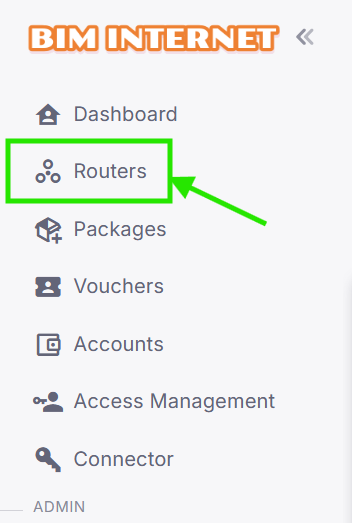
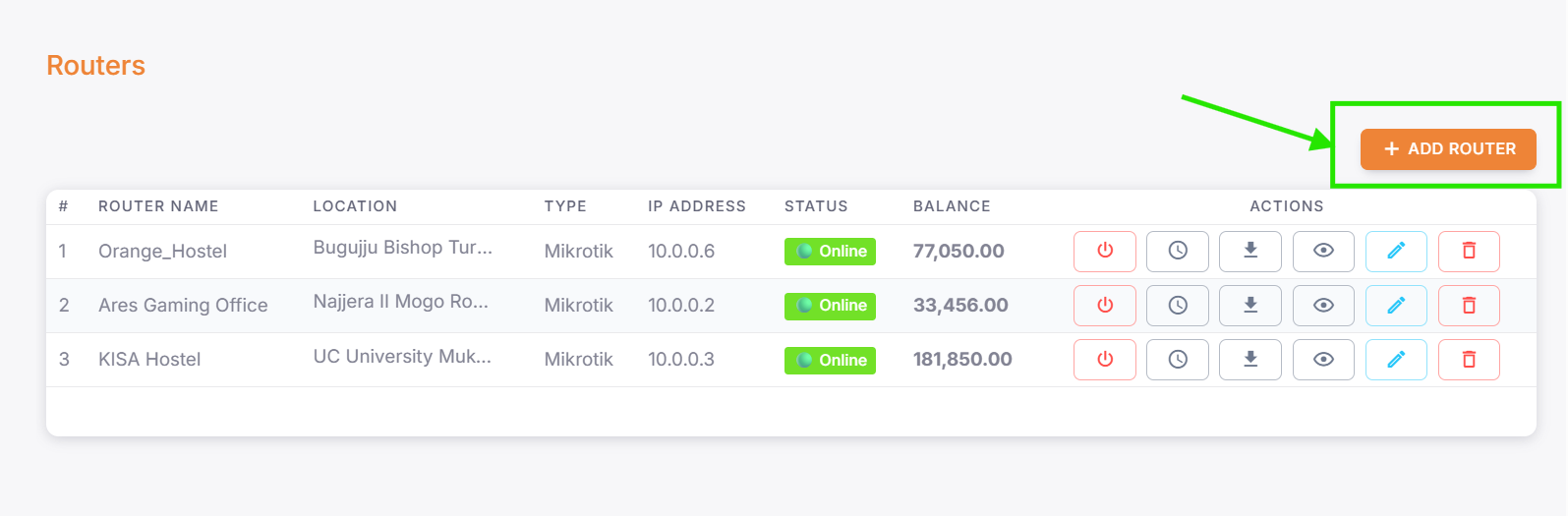
2.2 If you haven't setup your router yet, select the add router button.
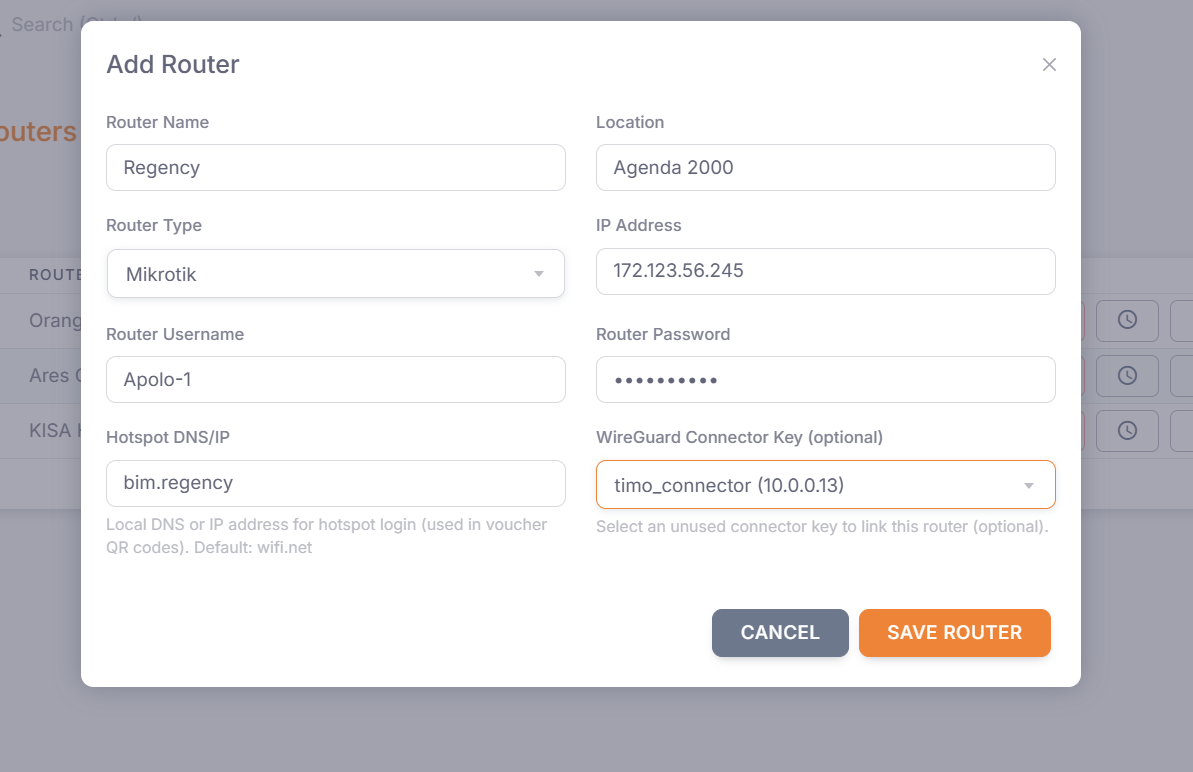
2.3 Fill in the details of your router including the wireguard key that you created earlier, and finally save router.
2.3 Once your router is setup with the correct IP address, port and wireguard key, go ahead and download the provision script.
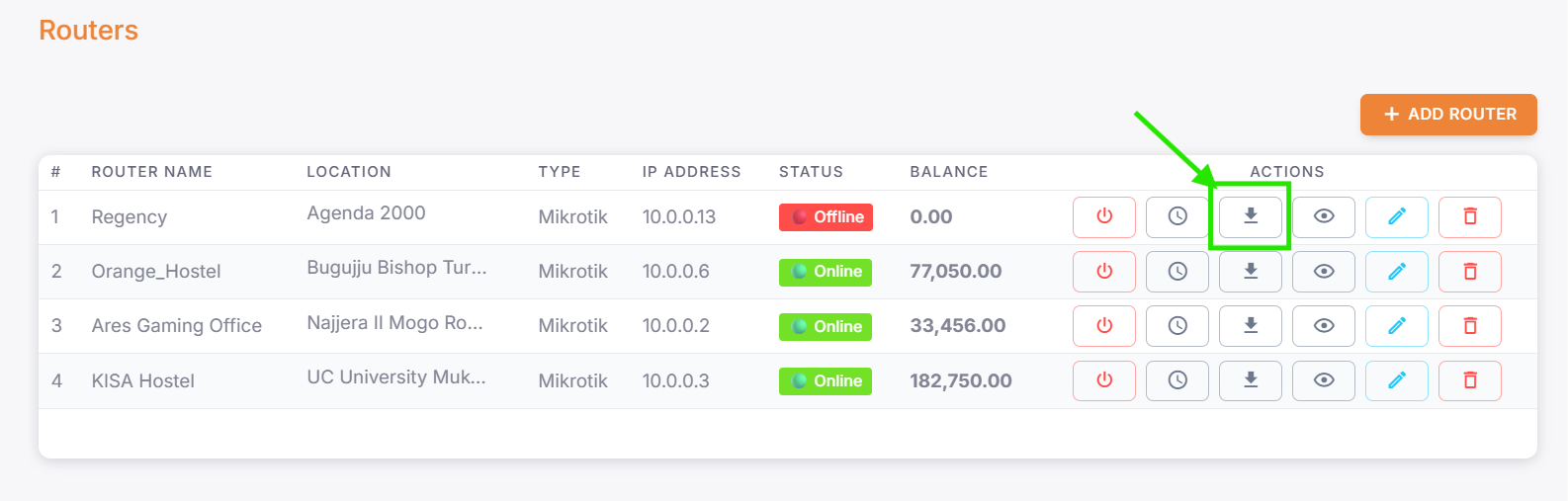
The downloaded script is the one you will run on your Mikrotik router for it to be able to get all the required configurations.
NOTE:
If you need help with running the script on your router or the physical setup of your router, please contact us.